 SnipSheet
How to turn a screenshot of a table into Excel
Someone sent you a screenshot of a table, or the data is stuck in an app that won't let you copy it. Instead of retyping it cell by cell, you can turn the image into a spreadsheet.
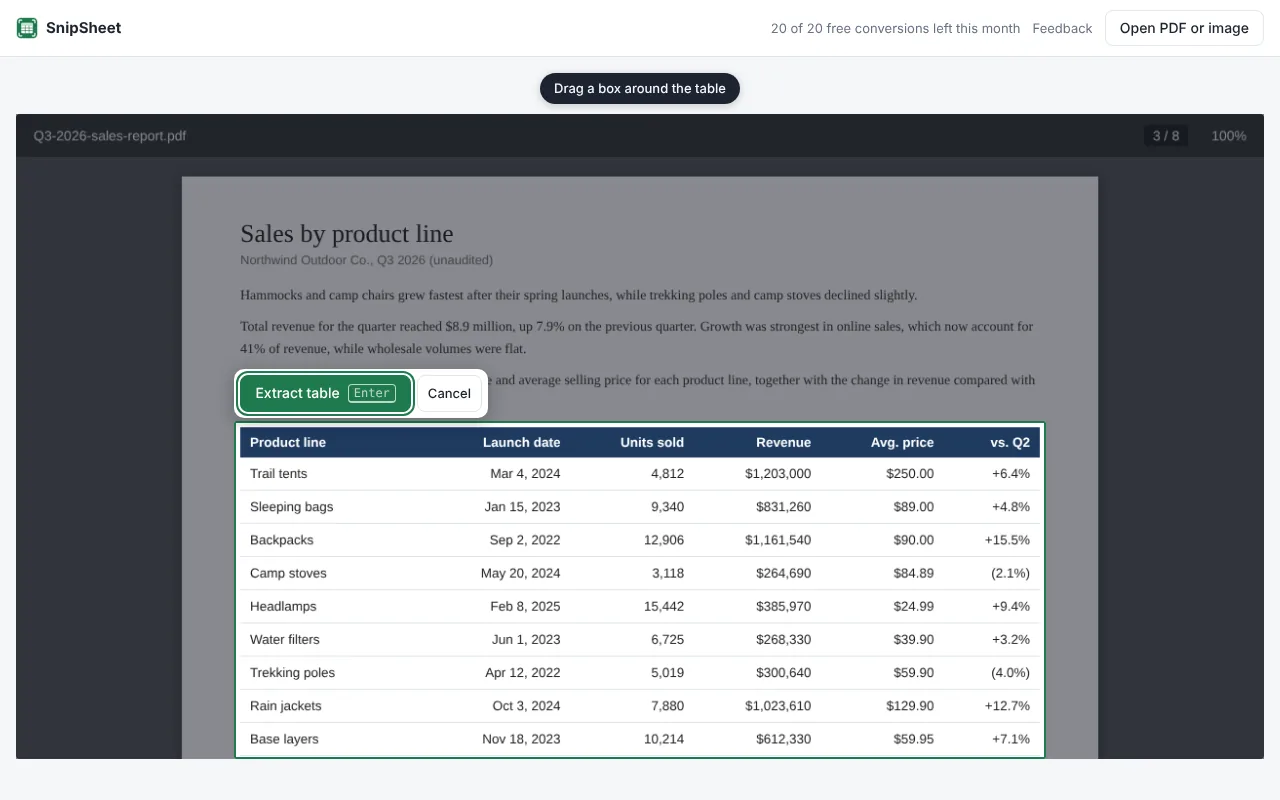
Paste the screenshot into SnipSheet with Ctrl+V, drag a box around the table and download Excel. On a web page, just click the SnipSheet icon and select the table.
From a web page or dashboard
- Open the page with the table.
- Click the SnipSheet icon in your toolbar, or press Alt+Shift+S.
- Drag a box around the table and click Extract table.
- Click Download Excel.
From a screenshot or image file
- Take a screenshot: Windows+Shift+S on Windows, or ⌘+Shift+4 on Mac. Or use the image you received.
- Open SnipSheet and press Ctrl+V (⌘+V on Mac) to paste it, or click Open PDF or image.
- Drag a box around the table and click Extract table.
Why not just use a free online OCR tool?
Most OCR tools give you text, not a table: you still have to split columns and convert numbers by hand. SnipSheet keeps the rows and columns and recognises numbers, percentages, currencies and dates, so the result is ready to use in formulas and charts.
Try SnipSheet free. 20 tables a month, no sign up. It comes with a sample table so you can see how it works in seconds.
Add to Chrome, it's freeQuestions
Can Excel read a screenshot of a table?
Excel for Microsoft 365 has a Data from Picture feature, which works with a review step per cell. SnipSheet is quicker for larger tables and also works in Google Sheets.
Does it work with photos of printed tables?
Yes, as long as the photo is reasonably sharp and straight.